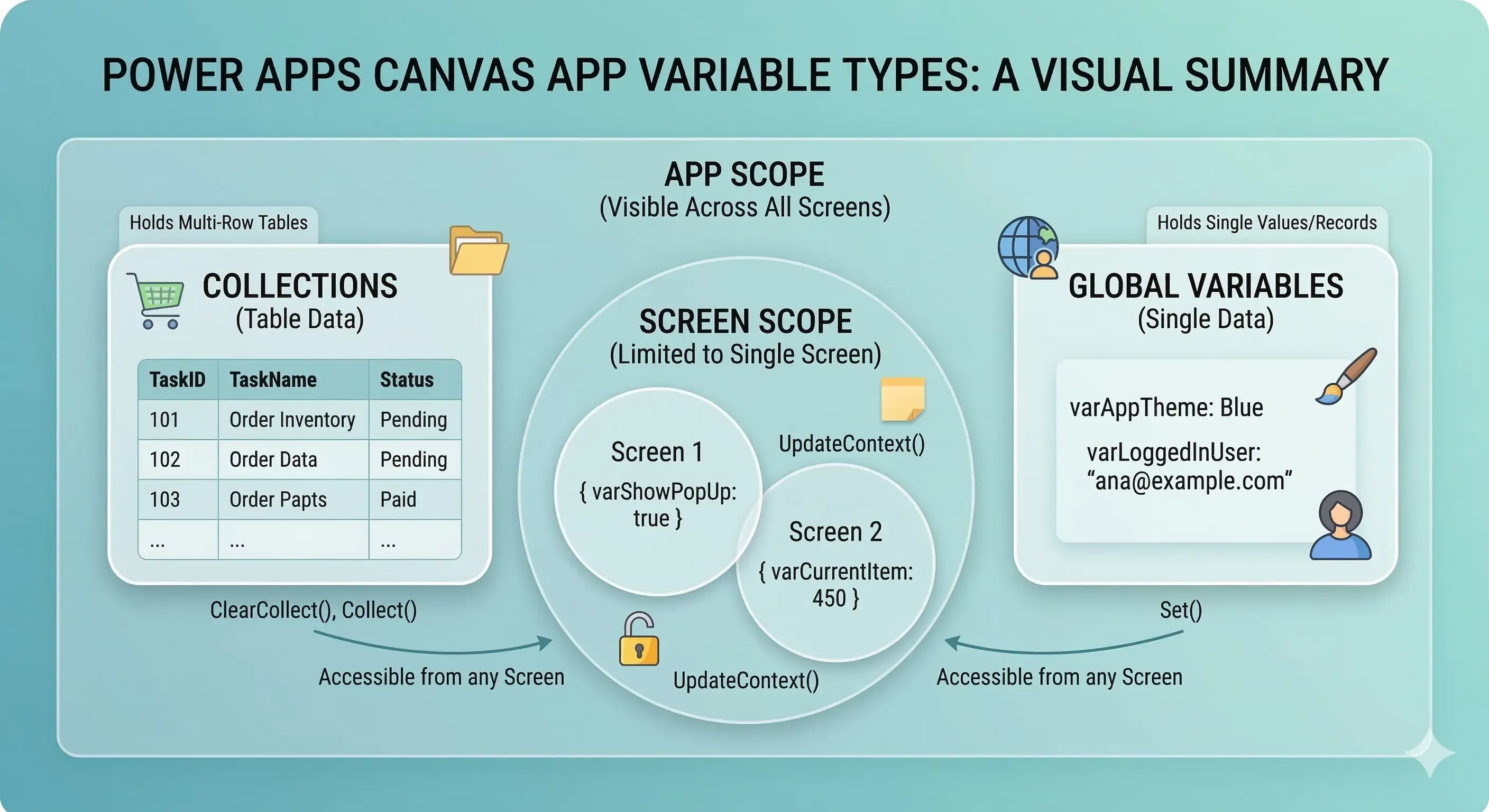
When you’re building a Power App, you often need to remember something from one moment to the next.
Maybe you need to remember the logged-in user’s name so you can greet them, or perhaps you want to temporarily store items a user is adding to a shopping cart before they click ‘Submit’. This is where variables come in.
In Power Apps Canvas Apps, there are three common ways to do this: Global Variables, Context Variables, and Collections.
1. Global Variables
What it is
A Global Variable is like a piece of information written on a main whiteboard that everyone in the building (every screen in your app) can see and use. Once you set a Global Variable, it is available across your entire app until the app is closed.
How to use it
You create and update a Global Variable using the Set() function. You give the variable a unique name and assign it a value.
Code Example: Storing the App Theme
Let’s say you want to set a primary color theme for your app. You can do this in the App.OnStart property or on a button click.
Code snippet
// Creating a global variable called varAppTheme and setting it to Blue
Set(varAppTheme, Color.Blue)
Now, on any screen in your app, you can use varAppTheme in the Fill property of a button or the Color property of a label to apply that blue theme.
When to use it
- App-wide Settings: Storing user preferences, company colors, or feature flags.
- User Information: Saving the logged-in user’s name or email address upon app start.
- Constants: Holding a single, unchanging value needed by multiple screens.
2. Context Variables
What it is
A Context Variable is like a personal sticky note that you use only within one specific room (a single screen). If you leave that room and go to another screen, you can no longer see or use that sticky note. It is temporary and private to that screen.
How to use it
You create and update a Context Variable using the UpdateContext() function. You pass it a record (information wrapped in curly braces {}) containing the variable name and value.
Code Example: Toggling a Pop-up Box
Suppose you have a screen with a button that shows a “More Information” pop-up. You want to track whether the pop-up is currently visible on this screen only.
In the OnSelect property of your “Show Info” button:
Code snippet
// Creating a context variable for this screen only
// to track if the info box is visible.
UpdateContext({varShowPopUp: true})
In the Visible property of the Pop-up container or controls:
Code snippet
// Use the variable to decide visibility
varShowPopUp
When to use it
- Screen-Specific Logic: Controlling screen UI elements like hiding/showing sections, enabling/disabling buttons.
- Passing parameters: You can also pass Context Variables when navigating to a new screen using the
Maps()function to set up that new screen’s state. - Temporary Calculations: Holding temporary values used only on one screen for a single process.
3. Collections
What it is
A Collection is like a structured table or list of many sticky notes. Unlike Global and Context Variables, which usually hold a single piece of information, Collections hold multiple rows of data, like a miniature spreadsheet. Like Global Variables, Collections are accessible from any screen in your app.
How to use it
You primarily create and update Collections using ClearCollect() (to clear the list and start fresh) or Collect() (to append new items to the existing list).
Code Example: Creating a Simple Task List
Imagine you are building a to-do app. Users can add multiple tasks to a list before saving.
In the OnSelect property of an “Add Task” button (using values from a text input txtNewTask):
Code snippet
// Adding a new row of data to the task list collection.
// We are adding columns 'TaskName' and 'Status'.
Collect(colTaskList, { TaskName: txtNewTask.Text, Status: "Pending" })
To display this list, you can set the Items property of a Gallery or Data Table to colTaskList.
When to use it
- Caching Data: Temporarily storing data fetched from a slow external source (like SharePoint or Excel) for faster app performance.
- Multi-Row Interaction: Letting users build a list (shopping cart, task list, inspection points) before final submission.
- Offline Capability: Collections are crucial for apps designed to work offline, storing changes locally until connectivity is restored.
Sources & Links
For the most up-to-date and detailed information, please refer to the official documentation:
- Microsoft Learn: Understand variables in canvas apps
- Microsoft Learn: Set function reference
- Microsoft Learn: UpdateContext function reference
- Microsoft Learn: Collect and ClearCollect functions reference